Mac windows move when you unplug a monitor: how to fix it
By Sheik Ahamed, who makes Findow. Checked on 31 October 2026. All guides
Short answer: macOS has to put windows somewhere when a display goes away, and it doesn't reliably put them back. Check the settings below first. To fix it for good, use an app that saves a layout for each monitor setup and restores it.
Why it happens
When you unplug a monitor, its windows have nowhere to go, so macOS moves them to the screens that are left. It may also resize them. When the monitor returns, macOS often leaves them where they are. The same thing can happen when your Mac wakes from sleep, because a display may reconnect a moment later.
Settings to check first
- Open System Settings > Desktop & Dock and scroll to Mission Control.
- Turn off Automatically rearrange Spaces based on most recent use, so your desktops stay in order.
- Check Displays have separate Spaces. Changing it means logging out, and it changes how Spaces work on each screen.
- In the Displays settings, check that your arrangement matches where your monitors really are.
These help keep things predictable. They won't restore window positions.
Keep a window on a specific display
Right-click an app in the Dock and choose Options. If you use separate Spaces, you can assign the app to a desktop. It's a partial fix, and it works per app, not per window.
Restore your layout automatically
Several apps can do this:
- Display Maid ($5.99) saves window positions by display setup.
- Rectangle Pro can run a workspace when displays connect or disconnect.
- Plugback is an open-source tool aimed at this exact problem.
- Findow does it as part of a bigger app.
Get back a window that's off-screen
Sometimes a window ends up where you can't reach it, usually after a monitor change. Try these in order.
- Click the app, then choose Window > Move & Resize and pick a position such as Fill. You can also press Fn-Control-F.
- Press ⌃↓ to see the app's windows and click the one you want.
- Open System Settings > Displays and change the resolution, then change it back. This makes macOS place windows again.
- Quit and reopen the app. Many apps remember their last position, so this may not help for those.
In Findow, ⌃⌥N sends a window to the next display, and ⌃⌥X clears the desktop so you can see what's behind.
Sleep, docks and common triggers
You may see this even when you haven't unplugged anything. These are the usual causes:
- Your monitor sleeps. Some monitors disappear from macOS when they sleep, which looks the same as unplugging them.
- A dock or hub wakes slowly. Your Mac may wake before the display returns, so windows move first.
- Two identical monitors. If they report the same details, a Mac can mix them up, and windows may swap sides.
- A different port or cable. A new connection can make a monitor look new to your Mac.
To narrow it down, try a direct cable instead of the dock for a day. If the problem goes away, the dock or its firmware is a likely cause. Check for updates from the dock's maker.
Small habits that help
- Sleep before you unplug. Close the lid or lock your Mac, then disconnect. This gives macOS less to do while you're working.
- Use the same port. Plug each monitor into the same place each time, so your Mac sees the same setup.
- Keep your system current. Display handling changes between macOS versions, so a fix may already exist.
- Avoid full-screen apps on the external display. A full-screen app lives in its own space, and it may move differently from a normal window.
- Don't resize while it settles. Give your Mac a few seconds after connecting before you touch anything.
None of these are guaranteed, but together they can make the shuffle smaller. For anything you set up often, a saved layout or workflow is more dependable than hoping windows stay put.
How Findow handles a monitor change
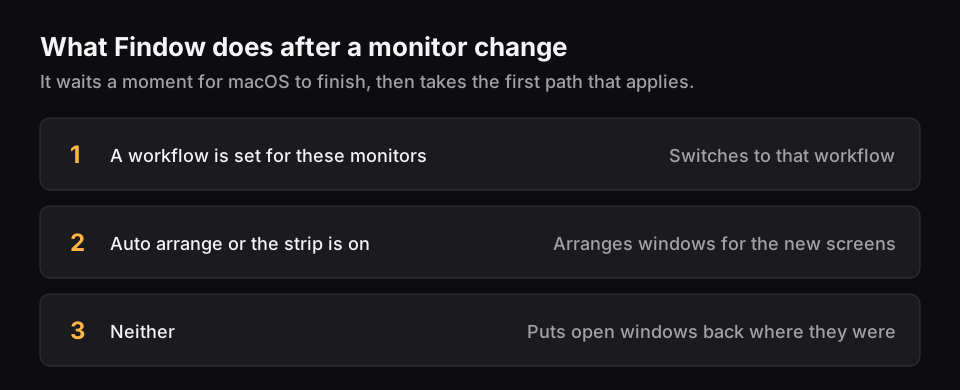
"Remember layout for each monitor setup" is on by default. Findow recognizes your displays and keeps a layout for each combination, so desk and laptop-only each have their own. After a change, it waits a couple of seconds for macOS to finish moving things, then acts on the first of these that applies:
- A workflow is set to this monitor setup. Findow switches to it, which also opens missing apps.
- Auto arrange or the strip is on. Windows are arranged again for the new screens.
- Neither. Findow puts your open windows back where they were for that setup.
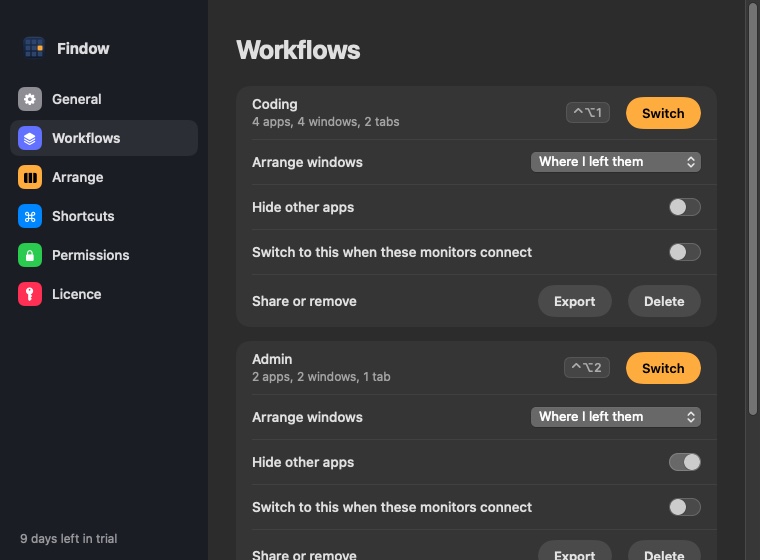
To set up the first one, open a workflow in Settings and turn on "Switch to this when these monitors connect". Findow's job is getting windows back, so it can't stop macOS from moving them at the moment you unplug.
Questions
Why do my windows move to my MacBook screen when my monitor sleeps?
If macOS treats the sleeping monitor as disconnected, it moves its windows to the screen that's left. A layout app can put them back when the display returns.
Can I stop macOS moving windows when I unplug a monitor?
No. The windows need a screen to appear on. What you can do is restore them when the monitor comes back.
Does Findow work with a dock or more than one monitor?
Findow identifies each display and keeps a layout for that set of monitors, however they connect.
Does Findow reopen closed apps after a monitor change?
Only with a workflow set to that monitor setup. The remembered layout moves the windows that are already open.
Try Findow free for 14 days
Every feature, with no account and no card. Then $19.99 once, with a 14-day refund. For macOS 14 or later.
Download Findow