Findow setup guide
By Sheik Ahamed, who makes Findow. Checked on 31 October 2026. All guides
Short answer: download the DMG, drag Findow to Applications, open it and grant Accessibility and Screen Recording. Then tap ⌥Tab to switch windows. Everything else is optional, and the app is free for 14 days.
What you need
- macOS 14 or later. So far Findow has only been built and run on Apple silicon with macOS 27.
- No account and no card for the trial.
- A few minutes, because macOS may ask you to restart Findow after you grant a permission.
1. Install Findow
- Download the DMG.
- Open it and drag Findow to your Applications folder.
- Open Findow from Applications. It's notarized by Apple, so macOS may ask you to confirm once, then opens it.
- Look for its icon in the menu bar. Findow lives there rather than in the Dock.
2. Grant permissions
Findow asks for two permissions, and a third appears when you first save browser tabs.
Accessibility
This lets Findow focus, open and move windows. Without it, Findow can't do its main jobs. Click the request button in Findow's Permissions tab and turn Findow on in System Settings under Privacy & Security.
Screen Recording
This shows live previews and finds windows on other desktops. Nothing is recorded, and it all stays on your Mac. Findow has a Restart button for when macOS needs the app reopened.
Automation
Your browser may ask for this the first time you save a workflow with tabs. It lets Findow read your tabs when you save. If you say no, the workflow can still handle apps and windows.
If Findow says to turn on a permission that's already on, open System Settings > Privacy & Security, remove Findow from the list, add it again, then restart Findow.
3. Learn four keys first
You don't need all the shortcuts. Start with these, and use them for a day.
- ⌥Tab: tap to jump back, or hold to see your windows and type to search.
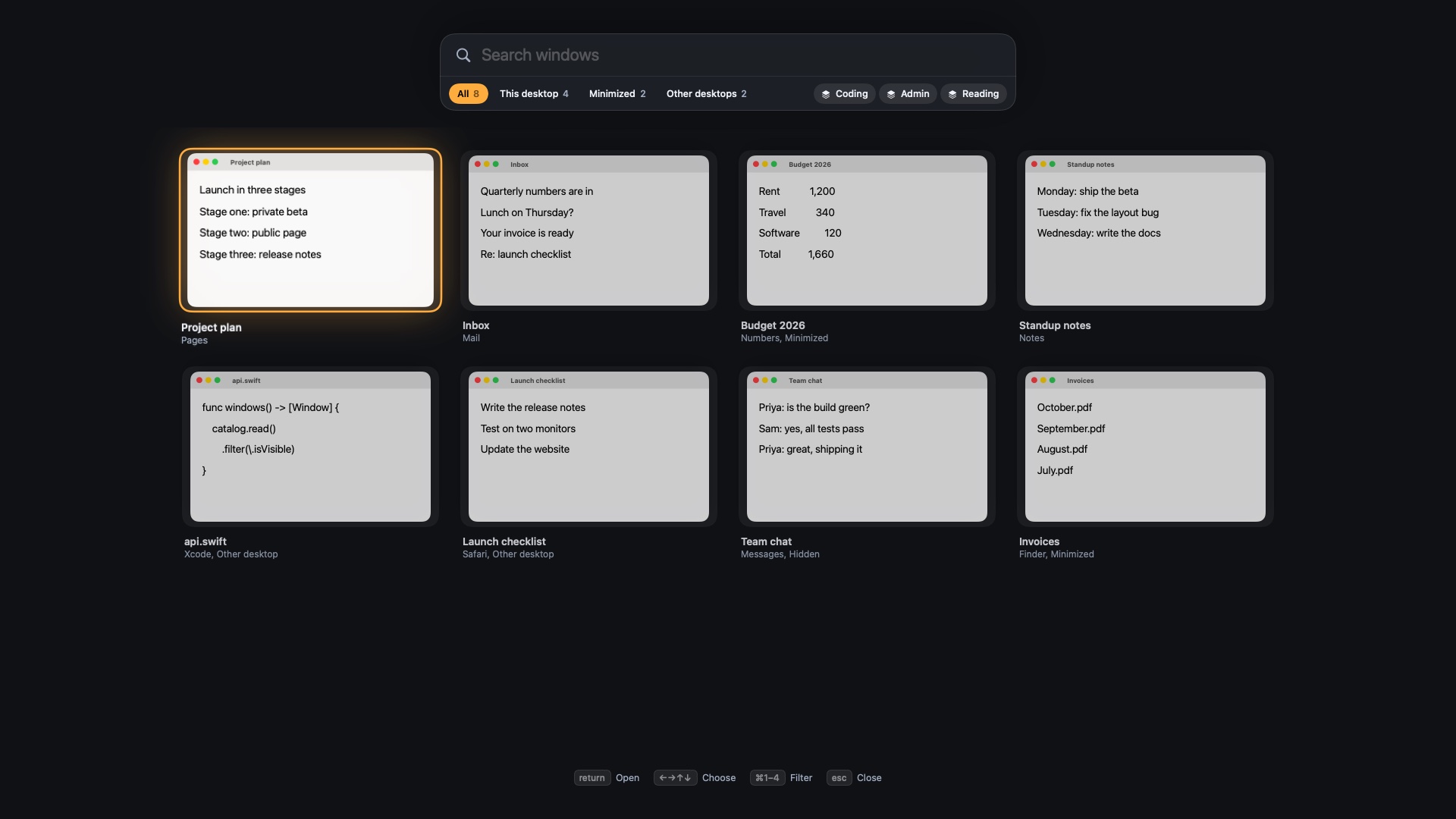
- ⌃⌥Space: the full overview, including minimized windows and other desktops.
- ⌃⌥T: tidy the windows on your desktop. Press it again to undo.
- ⌃⌥Z: fill the screen, and press again to return.
⌘Tab stays as it is. New to window switching? Read how to switch between windows on a Mac.
4. Change anything that clashes
If another app already uses a key, open Settings and go to Shortcuts. Every shortcut can be changed. You can also set a mouse button to open the overview. If you use AltTab, quit it or change its shortcut, as both may want ⌥Tab.
5. Save your first workflow
- Open the apps you use for one kind of work, and place the windows.
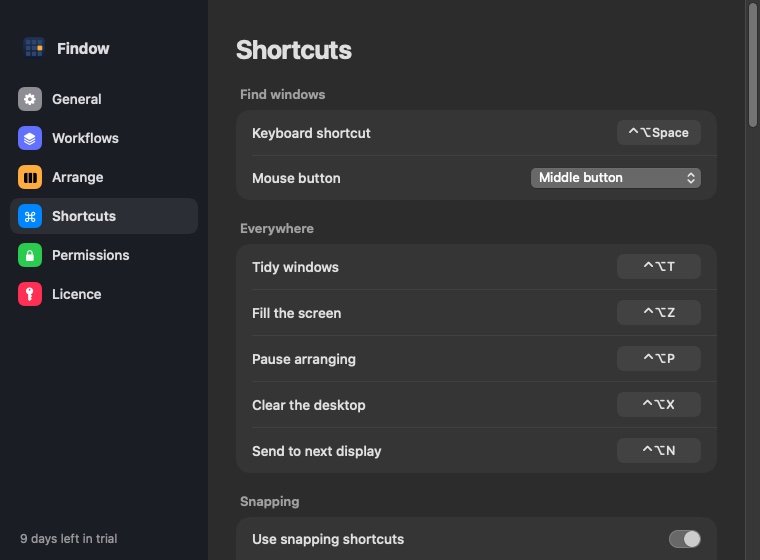
- Open the menu bar panel and press the plus button beside Workflows.
- Name it, such as Coding. Findow gives it a key from ⌃⌥1 to ⌃⌥9.
- Close a few things, press the key and watch it come back.
Safari tabs are off by default, because Safari can't tell Findow which windows are private. You can turn on "Save Safari tabs" in Settings. See how to save and restore window layouts for ideas.
6. Pick how windows get arranged
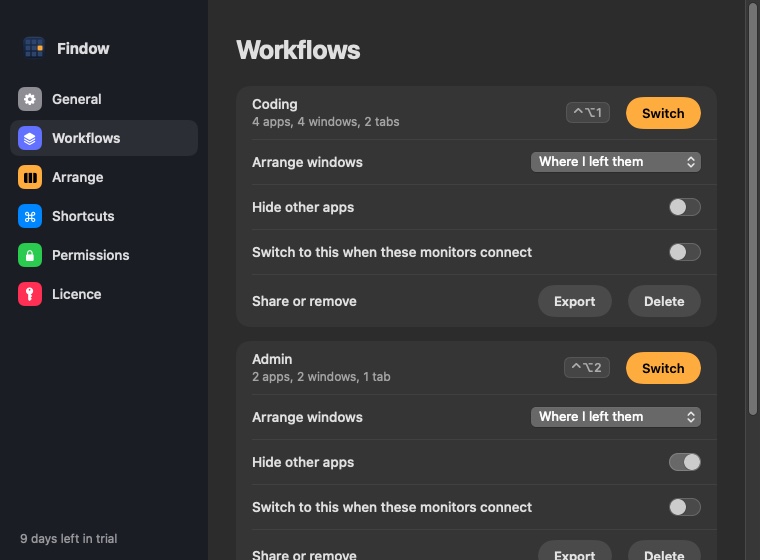
The menu bar panel has three modes under Arrange. Findow starts with arranging off, so nothing moves until you ask.
- Off: windows stay where you put them. You can still tidy with ⌃⌥T and snap with shortcuts.
- Auto: new windows take their place as they open, and you can pick a grid.
- Strip: windows sit side by side on a strip wider than your screen.
Quit other window apps before you use Auto or Strip, because they'd fight over positions. Findow warns you if one is running. Press ⌃⌥P to pause at any time, and ⌃⌥U to undo. Our guide to the kinds of Mac window manager explains the differences.
7. Set up your monitors
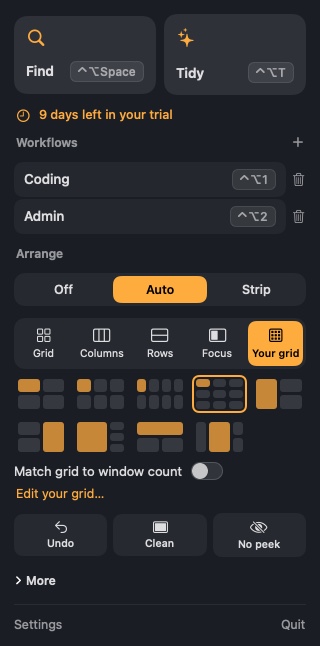
"Remember layout for each monitor setup" is on by default, so Findow can put your windows back when a monitor returns. To go further, open a workflow in Settings and turn on "Switch to this when these monitors connect". Read what happens when you unplug a monitor for the details.
8. Add your licence
The trial runs for 14 days with every feature. When you buy, your licence key arrives by email. Paste it into the Licence tab in Findow. A licence covers one Mac at a time, and you can deactivate it there before moving to a new Mac.
If something goes wrong
- Windows have gone off the screen: they're waiting at the edge. Click the tab there, or hold ⌃⌥ and use the mouse wheel. Quitting Findow brings every window back.
- Nothing arranges on one display: open the menu bar panel and look for "This display is off", then turn it on.
- Removing Findow: quit it, delete it from Applications, and delete the Findow folder in Application Support.
For anything else, visit Support. We read every message.
Questions
How long does setup take?
Most people can install it and grant permissions in a few minutes. Learning the keys takes a day or two of normal use.
Do I need to give Screen Recording?
It's needed for previews and for finding windows on other desktops. Nothing is recorded, and it stays on your Mac.
Does Findow start at login?
It can. Turn on Open at login in Findow's General settings.
Try Findow free for 14 days
Every feature, with no account and no card. Then $19.99 once, with a 14-day refund. For macOS 14 or later.
Download Findow