How to restore minimized windows on a Mac
By Sheik Ahamed, who makes Findow. Checked on 31 October 2026. All guides
Short answer: press ⌘Tab to reach the app, then hold ⌥ and release ⌘. Many Mac users report that this restores a minimized window. You can also click the window in the Dock, or use ⌃↓ and pick it from the row at the bottom.
Why ⌘Tab doesn't bring it back
⌘Tab switches to the app. If all the app's windows are minimized, you land on the app with nothing to see. ⌘` skips minimized windows too. And the switcher doesn't show which apps have minimized windows, so you have to remember.
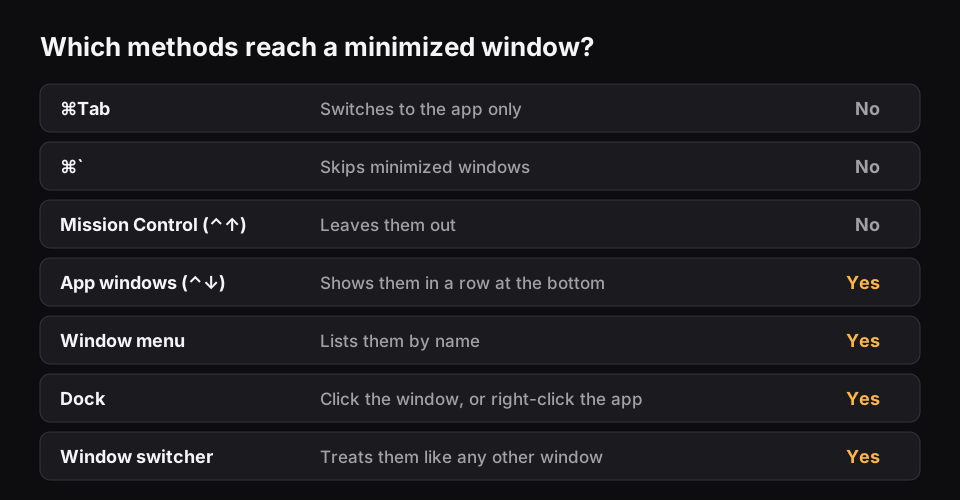
Five ways to get a minimized window back
1. The ⌘Tab and ⌥ trick
- Hold ⌘ and press Tab until the app is selected.
- Keep ⌘ down and press ⌥ as well.
- Let go of ⌘ first, then ⌥.
This isn't on Apple's shortcuts page, so its behaviour may vary between apps and macOS versions.
2. Show the app's windows
Switch to the app and press ⌃↓. Minimized windows appear in a row at the bottom. Click one to restore it. You can also use the arrow keys and Return in this view.
3. Use the Window menu
Switch to the app and open the Window menu in the menu bar. It lists the app's windows by name, including minimized ones.
4. Right-click the Dock icon
Right-click the app in the Dock and choose the window. If you turned on "Minimize windows into application icon" in System Settings, this is the main way to reach them from the Dock.
5. Use a window switcher
With a switcher, minimized windows are just more windows. In Findow, hold ⌥Tab and they appear underneath each screen. Pick one, or press ⌘1–4 to filter straight to them. AltTab also shows them, for free.

Why it's so easy to lose a window
Minimizing was designed for mouse users. You click the yellow button, the window drops into the Dock, and you click it again to bring it back. That still works. The trouble starts on the keyboard. A window you minimized with ⌘M doesn't appear in the ⌘Tab row as a window, so ⌘M has no matching key to undo it.
It gets harder if you've turned on "Minimize windows into application icon" in System Settings under Desktop & Dock. The Dock stays tidy, but your minimized windows no longer have their own thumbnails. To reach them, you need the app's Window menu or a right-click on its icon.
Minimize, hide or close?
Each one does something different, and picking the right one saves trouble later.
- Minimize (⌘M) sends one window to the Dock. Use it when you want that window later, but not the others.
- Hide (⌘H) puts away every window of an app. ⌘Tab brings them all back, so it's the best choice for keyboard users.
- Close (⌘W) closes the window. The app usually stays open, ready to make a new one.
- Quit (⌘Q) closes the app and all its windows. Unsaved work may prompt you first.
If you've been minimizing everything just to clear space, hiding may suit you far better. Another option is to stop putting windows away, and use a separate desktop for each task. ⌃← and ⌃→ then move you between them.
When a window seems to be gone
If a window isn't in any of those places, go through this short list.
- Check whether the app is hidden. Click its Dock icon to show it again.
- Press ⌃↑ to see if the window is on another desktop.
- Open the app's Window menu and look for a title. If it's there, click it.
- If you recently unplugged a monitor, the window may be off-screen. Choose Window > Move & Resize in the app, or read what to do when windows move between monitors.
- If the app has no open windows at all, click its Dock icon or press ⌘N.
If you still can't find it, restart the app. Most apps will show their window again, though it's worth saving your other work first, because you may lose anything unsaved in that app.
A quick way to practise
If you want these keys to stick, spend five minutes on them. Open two windows in one app, press ⌘M on one, then bring it back with ⌃↓ and Return. After a few tries it becomes habit. If you use many windows, a window switcher is the simpler long-term fix.
Stop minimizing, start hiding
If you only want a window out of the way, try ⌘H instead of ⌘M. Hiding puts away all of the app's windows, and ⌘Tab brings them back. The drawback is that it hides every window of that app, not just one.
To clear your whole screen for a moment, use Show Desktop with Fn-F11. Findow's ⌃⌥X clears the desktop too.
Questions
What's the keyboard shortcut to unminimize a window on Mac?
macOS has no direct unminimize shortcut. The closest is to press ⌘Tab to the app, hold ⌥ and release ⌘, or press ⌃↓ and choose the window.
Why doesn't Mission Control show minimized windows?
Mission Control shows open windows, but minimized ones stay in the Dock. Use ⌃↓ on the app to see them.
Where do minimized windows go on a Mac?
They go to the right side of the Dock, or into the app's icon if you've turned that setting on.
How do I minimize all windows of an app?
Press ⌥⌘M.
Try Findow free for 14 days
Every feature, with no account and no card. Then $19.99 once, with a 14-day refund. For macOS 14 or later.
Download Findow