Window management on an ultrawide Mac monitor
By Sheik Ahamed, who makes Findow. Checked on 31 October 2026. All guides
Short answer: an ultrawide needs three or four columns, not macOS's halves. Rectangle is the free way to get thirds and fourths. For windows that arrange themselves, use a tiling or strip app. Findow also has a Focus layout built for extra-wide screens.
Why a normal setup fails here
Two halves of an ultrawide are each about as wide as a full normal monitor. That sounds great until you read a web page stretched across it, or watch an editor with text pressed against the left edge. A single maximized window is worse. Your eyes and your pointer both travel further than they should.
There are three common problems:
- The main window is off to one side. Halves put a seam right in the centre, where you're looking.
- Apple's tiling doesn't go far enough. Its menus offer halves and quarters, and there are no thirds. See how to tile windows on a Mac for what's there.
- Pointer travel is long. Getting from one end to the other takes real effort if you use a mouse for everything.
Three layouts that work
1. Three columns
This is the default for good reason. Put your main work in the centre, with reference on one side and chat or a terminal on the other. Each window has a sensible width. Thirds are enough for a 34-inch screen. On a 49-inch, four columns may be better.
2. Big centre
Give the centre half of the screen to your main window, with narrower columns on both sides. You look straight ahead, and everything else is in your side vision. It works especially well for writing and video calls.
3. Two large plus a stack
Two large windows side by side, with a narrow stack of smaller ones at the end. It suits coding next to a browser, with notes and chat waiting at the side.
Free ways to get there
Rectangle
Rectangle is the first thing to install. Its actions include thirds, fourths, three-fourths, sixths and eighths. You assign the extra sizes in the Shortcuts tab, so a four-column layout is a few key presses. It's a manual tool: you place each window yourself, and it needs macOS 14 for current releases.
AeroSpace and yabai
Both will tile automatically for free, with a text config. A tree of splits can get messy on a very wide screen, so expect to do some tuning. See yabai with SIP left on for that route.
A scrolling strip
A strip is a good match here, because you've got room to see several columns at once, and overflow is still there when you need it. Karousel, a KDE tool for Linux, says it works especially well with ultrawide screens. On a Mac, the free choices are PaperWM.spoon and Paneru. See the scrolling window manager roundup.
How to do this in Findow
Findow, which we make, handles each layout above. Most of them take a press or two.
| Layout | How to get it in Findow |
|---|---|
| Three equal columns, once | ⌃⌥D, ⌃⌥F and ⌃⌥G for left, center and right thirds |
| Three columns, always | Auto arrange with Columns (⌃⌥⌘2) |
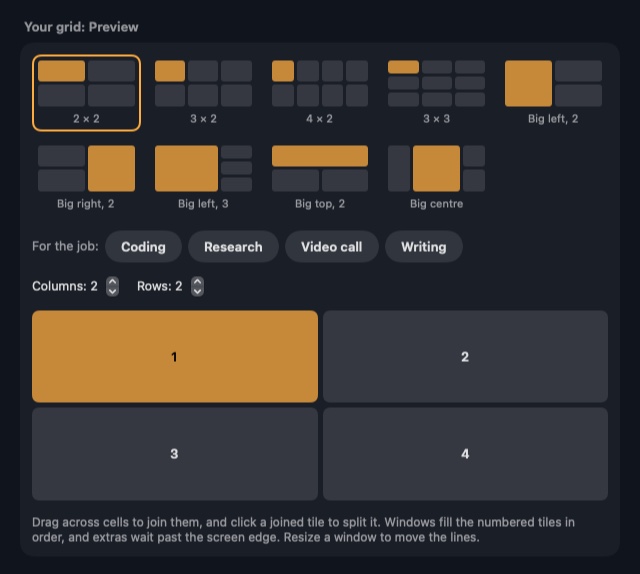
| Big centre | Your grid, with the Big centre ready-made grid |
| Two large and a stack | Auto arrange with Focus (⌃⌥⌘4) |
| Your own columns | Your grid (⌃⌥⌘5), up to 6 columns by 4 rows |
| Long strip | Scrolling strip, with ⌃⌥R to set widths |
Focus on an ultrawide
This one is built with these screens in mind. On a normal screen, Focus gives one window the big space. When the area is at least 2.2 times as wide as it is tall, and you've got three or more windows, Focus keeps two large windows and stacks the rest beside them. Both 21:9 and 32:9 screens qualify, and the switch is automatic.
Your own grid
In Settings > Arrange, with Auto arrange on, set a display to Your grid. Then choose a ready-made grid or set rows and columns and drag across cells to join them. Your main window keeps the biggest tile. Drag a window's edge and the grid line moves. Drag one window onto another to swap them. Each display keeps its own grid, so your laptop screen can have a simple one and the ultrawide a more detailed one.
The strip on a wide screen
Press ⌃⌥R to set a column's width, down to 25 percent. About four columns at 25 percent fit across the screen, with the rest waiting past the edge. In the menu bar panel, set Centre focused to Always and the focused column stays in the middle, which removes most of the side-to-side head turning. On a very wide screen this is a nice way to work.
Cutting pointer travel
In the menu bar panel, Mouse follows focus moves the pointer to the window you switch to, and Focus follows mouse does the reverse. Both are off by default. ⌥Tab also helps, since it lets you search for a window by typing rather than travelling across the screen.
Use the space for privacy too
A big screen is easy to read over your shoulder, and it's very visible on a call. No peek (⌃⌥⇧N) darkens everything but your active window. Clean Space (⌃⌥⇧Z) fills the screen with one window and hides the rest, on that screen only.
If you use your ultrawide with a laptop
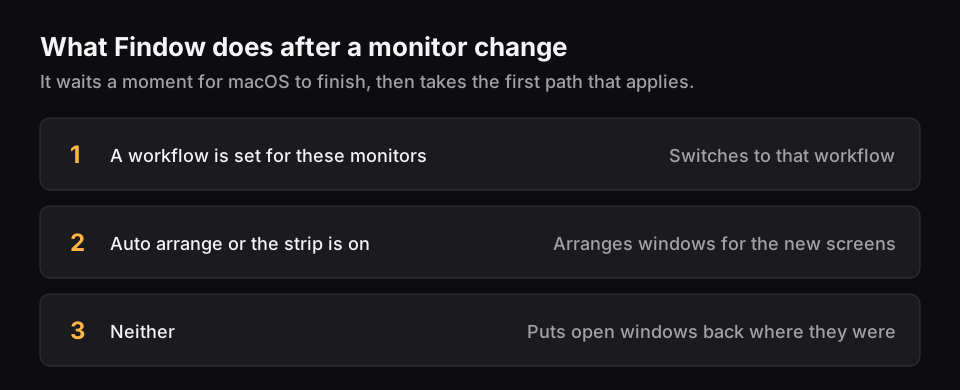
Plugging and unplugging is where ultrawide setups often fall apart. Findow remembers where windows go for each monitor setup. It's designed to put them back when that setup returns, and a workflow can switch by itself when its monitors connect. The monitor checks are still on our list to finish on real hardware, so treat this as what it's built to do. See how to stop windows moving when you unplug a monitor, and window managers for a MacBook for the laptop side.
Which should you pick?
If you place windows by hand and they don't change much, use Rectangle. It's free and covers this well. If your windows change all day and you want them arranged, try a tiling tool or Findow. Findow costs $19.99 once for one Mac, with a 14-day free trial. It's been built and run on Apple silicon with macOS 27 so far.
Questions
What's the best way to split an ultrawide monitor on a Mac?
Use three columns, with your main window in the centre. Rectangle's thirds do this for free, and tiling apps can do it automatically.
Can macOS split a screen into thirds?
Not with built-in tiling. Apple's menus offer halves and quarters. Use an app such as Rectangle or Findow for thirds.
Is a scrolling strip good on an ultrawide?
Yes. You can see several columns at once, new windows don't shrink the rest, and extra windows wait past the edge.
How do I center a window on an ultrawide?
Press Fn-Control-C on a Mac, or ⌃⌥↓ in Findow with arranging off.
Does Findow treat ultrawide screens differently?
Yes, in one layout. Focus keeps two large windows when the area is at least 2.2 times as wide as it is tall.
Try Findow free for 14 days
Every feature, with no account and no card. Then $19.99 once, with a 14-day refund. For macOS 14 or later.
Download Findow