How to tile windows on a Mac
By Sheik Ahamed, who makes Findow. Checked on 31 October 2026. All guides
Short answer: drag a window to the left, right or a corner of the screen and let go when the highlighted area appears. You can also hover over the green button, choose Window > Move & Resize, or press Fn-Control with an arrow key.
All of this is built into macOS, so try it before you install anything. Apple's guide covers it for current versions of macOS, and the same few moves handle most days. This page walks through each method, then the settings that make tiling feel broken when they're off, and finally the point where an extra app starts to earn its place.
Method 1: drag to the edge
- Drag the window by its title bar towards the left or right edge, or into a corner.
- Wait for the highlighted area to appear.
- Let go. The window snaps into that space.
Drag a window to the menu bar to make it fill the desktop. If the drag goes past the top edge, you may open Mission Control instead, so stop at the menu bar.
If you find that windows tile when you didn't want them to, the Option method below is the fix. Turn off the plain drag and only hold ⌥ when you mean it.
Method 2: hold Option while dragging
Hold ⌥ as you drag towards the top, left, right or a corner, then let go in the highlighted area. Because you choose when it happens, this suits people who drag windows around a lot and only want to tile now and then.
Method 3: the green button
- Hover over the green button at the top left of the window.
- Press ⌥ if you want to see more layouts.
- Pick a layout under Move & Resize for this window, or under Fill & Arrange to tile several windows.
Hover over Full Screen for Split View options. Those put the windows in their own full-screen space, which is a different thing from tiling on your desktop.
Method 4: the Window menu
Open the app you want to move, then choose Window > Move & Resize from the menu bar. Halves and Quarters move the active window. Arrange handles several windows at once. Center and Fill sit in the same menu. This is a good method to use while you're learning, because you can see every layout in one place.
Method 5: keyboard shortcuts
These are the fastest once they're in your fingers. Apple doesn't list a shortcut for the corners or the plain Quarters layout, so use the menu or a drag for those.
| Action | Shortcut |
|---|---|
| Fill the desktop | Fn-Control-F |
| Center the window | Fn-Control-C |
| Left or right half | Fn-Control-Left or Right Arrow |
| Top or bottom half | Fn-Control-Up or Down Arrow |
| Back to the earlier size | Fn-Control-R |
| Two windows, left and right | Fn-Control-Shift-Left Arrow |
| Two windows, right and left | Fn-Control-Shift-Right Arrow |
| Two windows, top and bottom | Fn-Control-Shift-Up Arrow |
| One left, others in quarters | Fn-Control-Option-Shift-Left Arrow |
The Shift keys are worth learning first. Most people tile one window at a time, then tile the second by hand. Fn-Control-Shift-Left Arrow does both in one press.
Check these settings if tiling seems broken
Open System Settings > Desktop & Dock and scroll to Windows. There are four switches:
- Drag windows to left or right edge of screen to tile. Turn this off if windows keep tiling by accident.
- Drag windows to menu bar to fill screen. Controls the top-edge drag.
- Hold ⌥ key while dragging windows to tile. Controls method 2.
- Tiled windows have margins. Turn this off if you'd rather have tiles touching.
Where built-in tiling stops
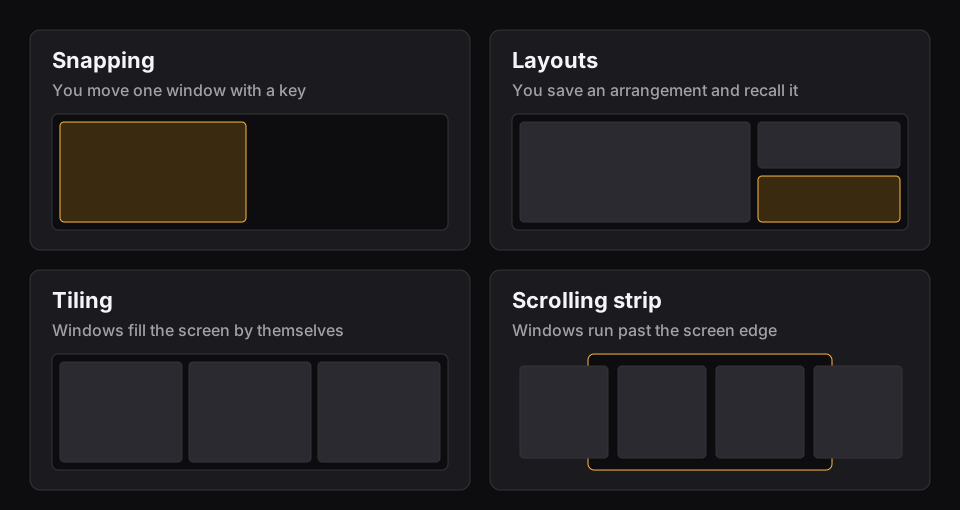
Apple's menus deal in halves and quarters. There are no thirds, nothing happens by itself, and tiling is a one-off move. Open a new window and it lands on top of your tiles. Plug in a monitor and nothing puts your arrangement back. There's also no way to save a set of positions under a name.
If you only tile two windows side by side now and then, stop here. You don't need anything else.
When an extra app makes sense
Which app depends on which limit you've hit:
- You want thirds and fourths by key. Rectangle does this. It's the first app to try, and it's on GitHub for free.
- You want a named arrangement to come back. See how to save a window layout.
- You want windows to tile by themselves. That's a tiling window manager. Our guide to yabai with SIP left on covers the main free route.
- You want windows that never shrink. Read what a scrolling window manager is.
How Findow does the same jobs
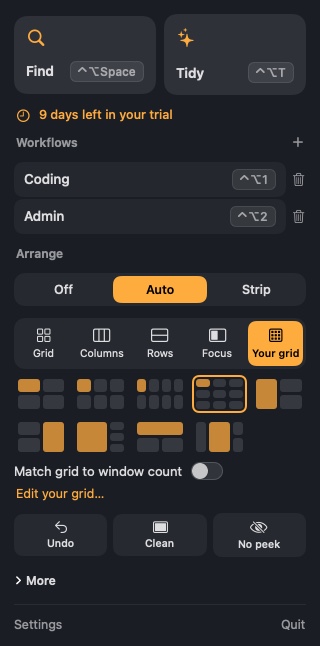
Findow is our app. With arranging set to Off, it adds snapping and a one-press tidy without moving anything on its own.
| Job | Findow key |
|---|---|
| Left or right half | ⌃⌥← or ⌃⌥→ |
| Maximize | ⌃⌥↑ |
| Center | ⌃⌥↓ |
| Left, center or right third | ⌃⌥D, ⌃⌥F or ⌃⌥G |
| Tidy this desktop, press again to undo | ⌃⌥T |
Note what these keys drop: you don't need Fn, and there are thirds. If you later want windows arranged all day, turn on Auto arrange or the Scrolling strip in Settings > Arrange. Both are off by default. Findow costs $19.99 once for one Mac, with a 14-day free trial, and needs macOS 14 or later. So far it has only been built and run on Apple silicon with macOS 27. Quit other window apps while the automatic modes are on, because two apps moving the same windows will fight.
Questions
Does a Mac have built-in window tiling?
Yes. Drag a window to a screen edge or corner, use the green button, choose Window > Move & Resize, or use Fn-Control shortcuts.
Why isn't dragging to the edge working?
Check System Settings > Desktop & Dock > Windows. The drag option may be off. You can also hold ⌥ while you drag.
Can I tile windows into thirds on a Mac?
Not with Apple's built-in menus, which offer halves and quarters. You need an app such as Rectangle or Findow.
How do I undo tiling?
Press Fn-Control-R to return a window to the size it had before tiling.
Do built-in tiled windows stay tiled?
No. It's a one-off move. New windows don't join the arrangement, and windows don't return after a monitor change.
Try Findow free for 14 days
Every feature, with no account and no card. Then $19.99 once, with a 14-day refund. For macOS 14 or later.
Download Findow