Choosing a window manager for a MacBook
By Sheik Ahamed, who makes Findow. Checked on 31 October 2026. All guides
Short answer: start with macOS's built-in tiling and Rectangle, both free. If your windows feel cramped, try a scrolling strip, which suits small screens better than a grid. If you dock at a desk, make sure your choice handles monitor changes well.
What's different on a laptop
Most window manager advice assumes a large monitor. A MacBook changes three things.
- Less room. Two windows side by side is often the limit before apps get cramped. Four tiles on a 13-inch screen is too small for most work.
- A trackpad. Swipes are close to hand, and you may not have a mouse wheel or side buttons at all.
- Two lives. Many MacBooks spend the day at a monitor and the evening on a sofa, so your window setup has to survive both.
The right tool depends on which of these bothers you most.
If your problem is space
Tiling doesn't create room. Dividing a small screen in four gives you four small windows. Better options are to show fewer windows at a time and to get to the rest quickly.
Full-screen one window, switch fast
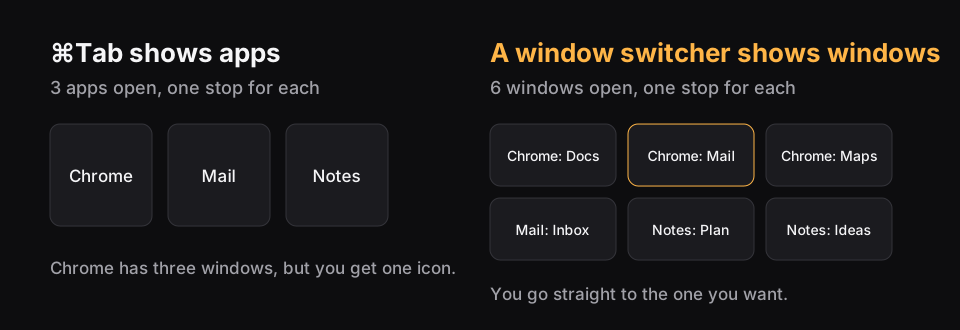
This is what most laptop users drift towards, and it's a good habit. Fill the screen with Fn-Control-F, and use a fast switcher to move around. ⌘Tab counts apps, though, not windows, so three browser windows can be awkward to reach. Our guide on how to switch windows on a Mac covers the options.
A scrolling strip
A strip is a good fit for laptops. A window takes half the screen or two thirds, stays that size however many others you open, and the rest wait past the edge. You get readable windows with no shuffling, and you move along with a swipe. If that's new, read what a scrolling window manager is.
If your problem is the trackpad
Check what your fingers are doing already. Apple's four-finger gestures, or three on some versions, handle switching full-screen apps, Mission Control and App Exposé. A strip that uses swipes needs a free set of fingers.
In Findow, Settings > Arrange has a Trackpad swipe option with Off, Three fingers and Four fingers. It picks a free one to start, and warns you if macOS uses the one you chose. You can change the macOS gesture in System Settings > Trackpad > More Gestures.
PaperWM.spoon can use two, three or four fingers. It's off until you set it. ChainYourMac lists trackpad swipes that follow your fingers. Our roundup of scrolling tools covers them side by side.
If your problem is docking
This is what catches people out. You spend a morning arranging windows across a big monitor, unplug for a meeting, and they all pile onto the laptop screen. You plug back in and nothing returns. Built-in tiling won't help here, because it's a one-off move.
What you want is a tool that remembers each monitor setup. In Findow, layouts are saved per setup and are designed to return when that setup does. A workflow can also switch by itself when its monitors connect, so "Desk" can bring back your big arrangement and a laptop workflow can bring back a simple one. Our monitor testing isn't finished on real hardware, so try this during the free trial. For more, read why windows move when you unplug a monitor.
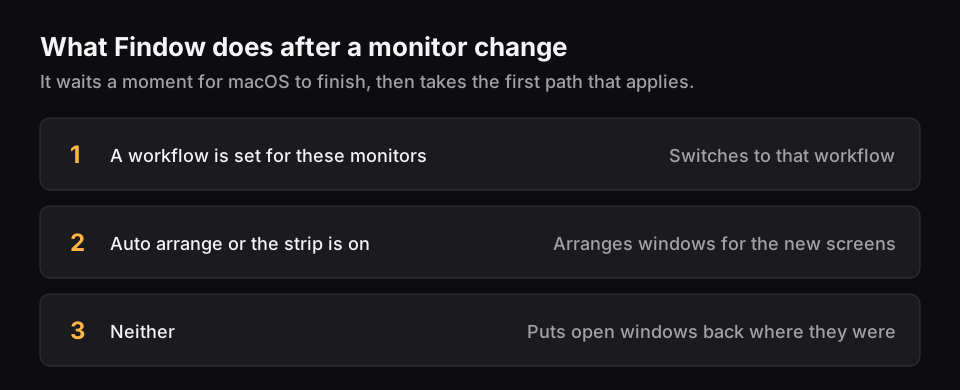
Findow keeps a separate layout for each display, so your MacBook screen can be a simple two-window split while the monitor uses a full grid. You can also leave the laptop screen out altogether with Arrange this display in the menu bar panel.
A good setup for the MacBook screen
This is the setup we'd suggest if you want to try Findow on a laptop. You can do most of it in the menu bar panel.
- Choose Scrolling strip in Settings > Arrange.
- Use ⌃⌥R to set your main window to 66 percent, with the next one at 33 percent.
- Set Trackpad swipe to a gesture that's free.
- Set Gap between windows to 4 points, or None, to save space. It's 10 by default.
- Use ⌃⌥Z when you need one window to fill the screen, and press it again to go back.
- Hold ⌥Tab, keep holding and type a few letters, to reach anything off screen.
Working in public
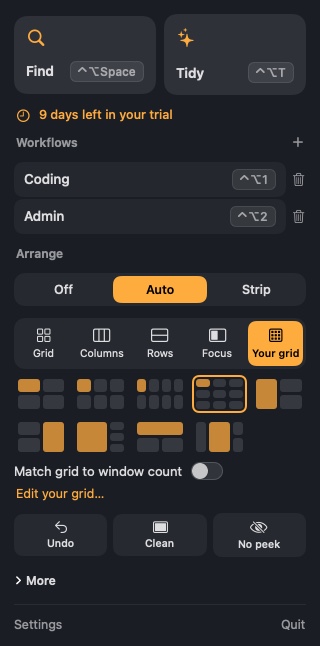
A laptop goes to cafes, trains and client meetings. Two Findow keys are worth knowing. No peek (⌃⌥⇧N) darkens everything but the window you're in. Clean Space (⌃⌥⇧Z) fills the screen with your window and closes panels in behind it. Press either again to return. Neither is a security tool, but both stop the casual glance.
Battery and clutter
Fewer background apps is usually better on a laptop. If you run a switcher, a snapping tool and a workspace app, ask if you really need all three. We won't claim any battery gain for Findow, since we haven't measured it, but one app is simpler to keep up to date than three.
Stage Manager is worth a word, because many MacBook users try it. It keeps a small strip of recent apps at the side. If you turn it on, Findow's arranging pauses until you turn it off, because Stage Manager moves windows itself.
Which should you pick?
| You want | Try | Cost |
|---|---|---|
| Occasional side-by-side | Built-in tiling | Free |
| Thirds and exact sizes by key | Rectangle | Free |
| A strip, and you like config files | PaperWM.spoon or Paneru | Free |
| A dedicated strip, no files | ChainYourMac | $19.99 once, Apple silicon |
| Strip, window search and workflows | Findow | $19.99 once, 14-day trial |
A note on older Macs: ChainYourMac is for Apple silicon only. Findow's aim is any Mac on macOS 14 or later, but it has only been built and run on Apple silicon with macOS 27 so far, so test it on an Intel MacBook before you buy. If you only need a free app, the best window managers for Mac guide has more options.
Questions
Do I need a window manager on a MacBook?
Not always. Built-in tiling is enough if you only use two windows at a time. A window manager helps if you run many windows or dock to a monitor.
What's the best free window manager for a MacBook?
Rectangle, for most people. If you want a strip, PaperWM.spoon and Paneru are free.
Is tiling good on a 13-inch screen?
Only for two windows or so. Beyond that, a strip or a fast switcher works better, because windows stay readable.
Why do my windows move when I undock my MacBook?
macOS moves windows onto the screens that remain. A tool that remembers each monitor setup can put them back.
Does Findow work with Stage Manager?
Findow's arranging pauses while Stage Manager is on, because Stage Manager moves windows itself.
Try Findow free for 14 days
Every feature, with no account and no card. Then $19.99 once, with a 14-day refund. For macOS 14 or later.
Download Findow